Webhooks & Slack: Push Feedback Into Your Stack
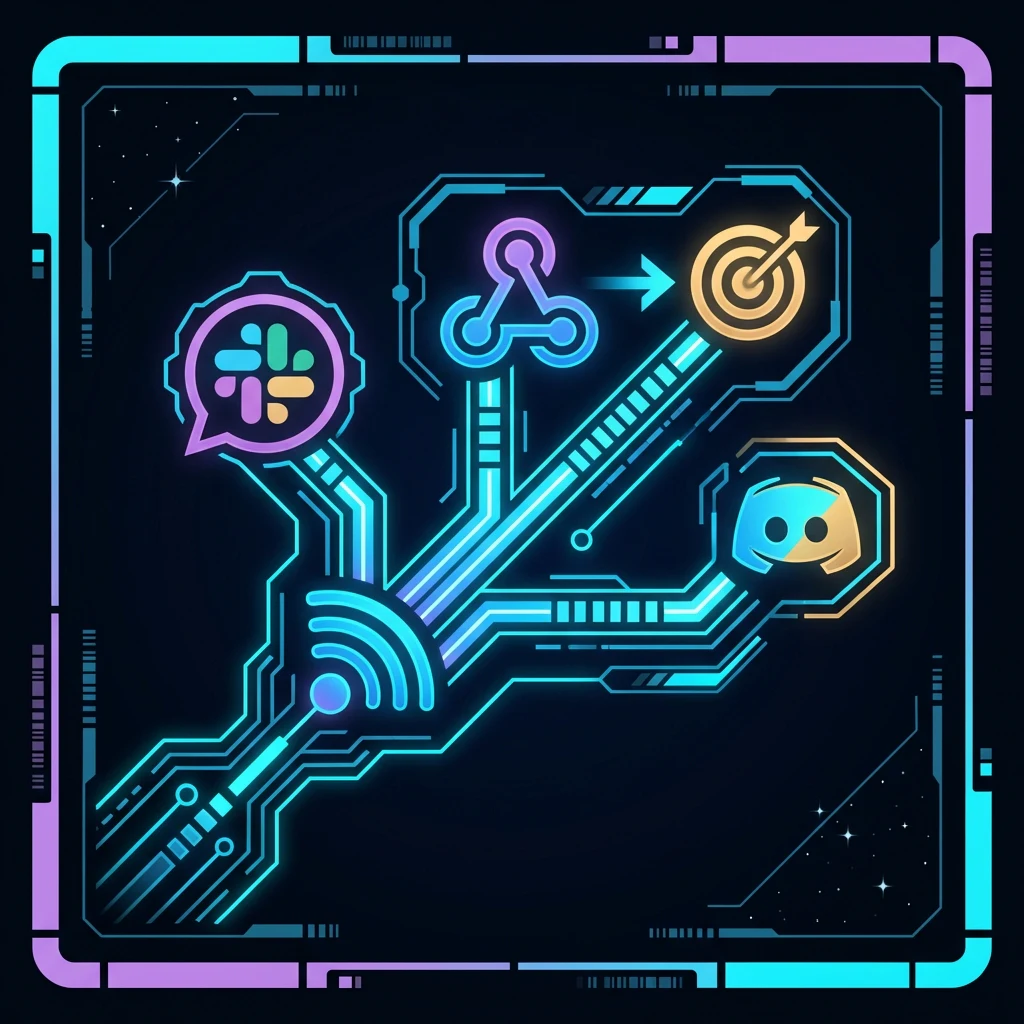
Send feedback and quest events to Slack or your own signed HTTP endpoint the moment they happen.
Nobody checks a dashboard they have to remember to open. A webhook pushes the event out the moment it happens.
The three events
Each webhook fires on whichever you tick:
| Event | Fires when |
|---|---|
feedback.created |
Someone submits feedback |
feedback.escalated |
Feedback matches one of your escalation rules |
quest.submitted |
Someone completes a quest |
A webhook is either Slack, which posts a formatted message, or Generic, which posts signed JSON to your own URL.
Send feedback to Slack
- In Slack, add an Incoming Webhook to your channel (Apps → Incoming Webhooks → Add to Slack) and copy the URL.
- In Qaid, open your project’s Settings and choose the Integrations tab. Click New Webhook.
- Set the Type to Slack, paste the Slack URL into Endpoint URL, tick the events you care about, and click Create.
- Click Test on the new webhook to post a sample message and confirm it lands in your channel.
Slack messages arrive formatted: headline, message, page, and a View in Qaid link.
💬 New feedback received
The save button does nothing when I click it
Page: https://example.com/account
View in Qaid
Posting to your own endpoint
Pick Generic and give it an https:// URL. Each subscribed event becomes a POST.
Two headers come with every delivery:
X-Qaid-Event: feedback.created
X-Qaid-Signature: sha256=9f86d081884c7d659a2feaa0c55ad015a3bf4f1b2b0b822cd15d6c15b0f00a08
The payload
The body stays small. Screenshots are never inlined, so you get a flag and a URL:
{
  "event": "feedback.created",
  "createdAt": "2026-07-10T15:40:00.000Z",
  "data": {
    "id": "clx8a1b2c3",
    "feedbackType": "negative",
    "message": "The save button does nothing when I click it",
    "url": "https://example.com/account",
    "elementSelector": "button.save",
    "elementText": "Save",
    "hasScreenshot": true,
    "consoleErrorCount": 2,
    "isEscalated": false,
    "projectId": "clp0z9y8x7",
    "dashboardUrl": "https://qaid.dev/dashboard/projects/clp0z9y8x7?feedback=clx8a1b2c3"
  }
}
A quest.submitted body carries the response, quest and project ids in data.
Verifying the signature
Anyone who learns your URL can post to it, so check X-Qaid-Signature first. Each webhook’s secret sits under Signing secret.
Compute an HMAC-SHA256 of the raw body and compare it:
import { createHmac, timingSafeEqual } from 'crypto';

const SIGNING_SECRET = process.env.QAID_WEBHOOK_SECRET;

function isValidSignature(rawBody, header) {
  const expected =
    'sha256=' + createHmac('sha256', SIGNING_SECRET).update(rawBody).digest('hex');
  const a = Buffer.from(header || '');
  const b = Buffer.from(expected);
  return a.length === b.length && timingSafeEqual(a, b);
}

// Express example — note express.raw() so you hash the exact bytes Qaid signed
app.post('/qaid-webhook', express.raw({ type: 'application/json' }), (req, res) => {
  if (!isValidSignature(req.body, req.get('X-Qaid-Signature'))) {
    return res.sendStatus(401);
  }
  const { event, data } = JSON.parse(req.body.toString());
  // ...handle the event
  res.sendStatus(200);
});
Sign the exact bytes you received. Re-serializing parsed JSON moves the whitespace and breaks the match.
Testing and turning one off
Test sends one sample delivery. Disable stops a webhook firing but keeps its secret. Edit covers name, URL and events.
Four things worth doing
Return a 2xx as soon as you have the payload, then do the slow work. Qaid records each delivery’s status.
Subscribe narrowly. A channel wanting urgent things takes feedback.escalated only, or it gets muted.
Keep the signing secret in an environment variable. Edit the webhook to rotate it.
Follow dashboardUrl rather than rebuilding the item yourself.
What needs Pro
Webhooks are Pro. A free project sees its existing ones but cannot fire them, and a downgrade stops delivery.